Programming KDE Using Qt
In Chapter 16, you looked at the GNOME/GTK+ GUI libraries for creating graphical user interfaces under X. These libraries are only half of the story; the other big player on the GUI scene in Linux is KDE/Qt, and in this chapter you look at these libraries and see how they shape up against the competition.
Qt is written in C++, the standard language in which to write Qt/KDE applications, so in this chapter you’ll be obliged to take a diversion from the usual C and get your hands dirty with C++. You might like to take this opportunity to refresh your memory on C++, especially reminding yourself of the principles of derivation, encapsulation, method overloading, and virtual functions.
In this chapter, we cover
- An introduction to Qt
- Installing Qt
- Getting started
- Signal/slot mechanism
- Qt widgets
- Dialogs
- Menus and toolbars with KDE
- Building your CD database application with KDE/Qt
Introducing KDE and Qt
KDE (K Desktop Environment) is an open source desktop environment based on the Qt GUI library. A host of applications and utilities are part of KDE, including a complete office suite, a Web browser, and even a fully featured IDE for programming KDE/Qt applications (KDevelop, covered in Chapter 9). Industry recognition of how advanced KDE’s applications are came when Apple chose to use KDE’s Web browser as the core of the primary Web browser for Mac OS X, called Safari, known as a very fast browser.
Why use Qt Creator
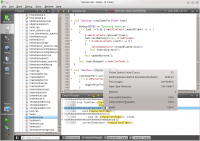
To create your C++ applications you can use any text editor. But life will be much easier if you gain QtCreator's features. That means
- you can get your source code saved, built and run with one click
- you get code-completion
- you can find all places in your source code where you call a function (e.g. "where do I call refresh()")
- you can go back to a more recent cursor position with your editor, even if this is in another file
- you can checkout and commit to Subversion or Git repositories without leaving your workflow
Creating a new program
Here is a short example of how you can create a "hello world" application. For more information read the user documentation.
- Step 0
Call QtCreator
qtcreator
Then select New File or Project -> Qt C++ Project -> Qt Gui Application -> name = helloworld -> Next -> Next -> Finish
- Step 1
Select Edit -> Forms -> mainwindow.ui. Add the widgets you want by drag-and-drop:
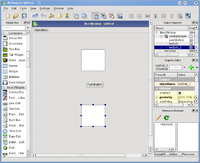
- Step 2
Select the mainwindow. This is the one un-intuitive step. To lay out the objects in the mainwindow, you do not select the objects in the mainwindow, but the mainwindow itself.
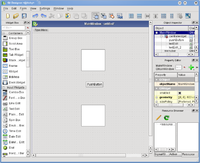
- Step 3
Select Form -> Lay Out in a Grid
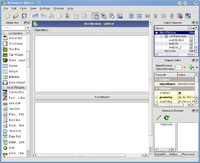
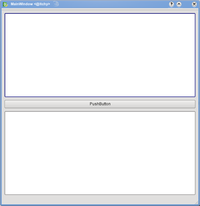
- Result
You get a decent look, and if you resize the window, the widgets resize as well.
Using KDE libraries
To use KDE classes like KMessageBox, you need to tell QtCreator to use the KDE libraries when building. Go to your home directory, change into yourproject and modify yourproject.pro. Add the line
LIBS += -lkdeui
Then you can start using KDE classes in your code.
Adding a toolbar
To add a toolbar, right-click on the UI and choose "Add Toolbar". Then you can set icons and text in your mainwindow's constructor with code like this:
ui->toolBar->addAction(QIcon("/usr/share/icons/oxygen/22x22/apps/ktip.png"),"hello world");
Load an existing project
This describes how to use QtCreator to integrate existing KDE 4 applications. It has been tested with QtCreator 1.2.80 and SUSE Linux 11.1 but should work same or similar with every combination. As an example KDE application we use ktimetracker from the kdepim module, other applications should work likewise.
You can either work with code on your disk or have QtCreator do the repository checkout.
Use code from your disk
- import the CMakeLists.txt file (File -> Open -> kdepim/CMakeLists.txt)
- as build directory choose kdepim
- you will automatically come to a screen where you can run CMake
- continue with the step "Run cmake"
Have QtCreator do the git checkout
- choose File -> New File or Project -> Import Project -> Git Repository Clone.
- enter a Git URL like git@git.kde.org:/kdepim
- accept kdepim as checkout directory
- type finish, see how the checkout starts
Note
If the checkout fails with the message "remote host hung up unexpectedly" do a checkout from konsole. You may have to accept git.kde.org's fingerprint.
- you will automatically come to a screen where you can run CMake
- continue with the step "Run cmake"
Have QtCreator do the subversion checkout
- choose File -> New File or Project -> Import Project -> Subversion Checkout.
- enter a Subversion URL like svn://anonsvn.kde.org/home/kde/trunk/KDE/kdepim
- enter a checkout directory, i.e. the local directory where the code will be checked-out to
- type finish, see how the checkout starts
- you will automatically come to a screen where you can run CMake
- continue with the step "Run cmake"
Run cmake
- enter arguments for CMake like
/path/to/kdepim -DCMAKE_INSTALL_PREFIX=/usr/local -DLIB_SUFFIX=64 -DCMAKE_BUILD_TYPE=debugfull
DLIB_SUFFIX=64 means that you want to install your libraries into directories named lib64, not lib. /path/to/kdepim is where your source code is.
- click "Run cmake"
- note: a .cbp file is created containing many information about the build
- click "Finish"
Build it
- configure QtCreator to build only ktimetracker:
Projects -> Active run configuration=ktimetracker -> build settings -> build steps -> make -> show details -> activate ktimetracker.
- configure QtCreator to use 8 logical processors:
Projects -> Active run configuration=ktimetracker -> build settings -> build steps -> make -> show details -> addtional Arguments = -j8
- choose Build -> Build All


Tidak ada komentar:
Posting Komentar